
Dash Cam Memory Cards: Match the Specs and Protect Important Clips
November 15, 2026
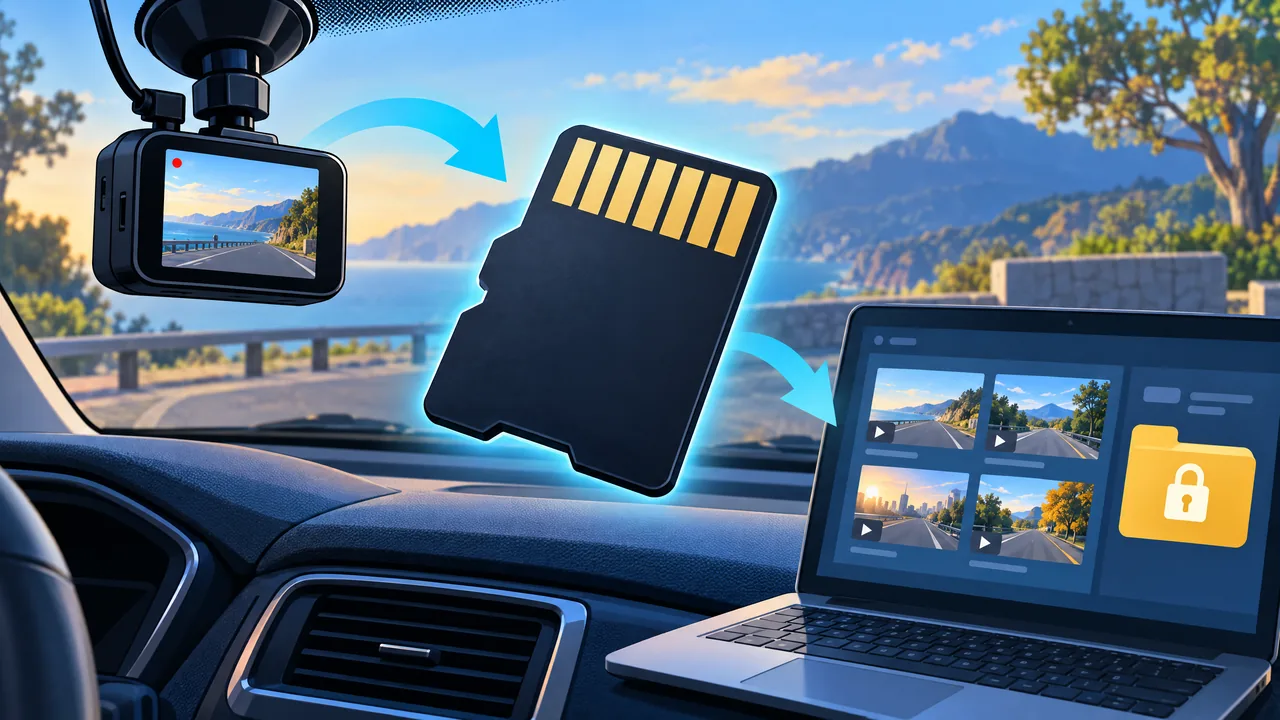
A dash cam memory card is working storage, not an archive of every drive. Before buying a replacement or clearing a warning, check the camera’s exact requirements and how it deletes recordings. If there is a clip you want to keep, preserving it comes before formatting or routine maintenance.
Match the card to the exact camera
Find the model number on the camera or in its app, then open that model’s current manual and card guidance. A card fitting the slot does not establish compatibility. Write down these requirements before comparing cards:
- Card type and supported minimum and maximum capacity.
- Required recording speed class, not just the advertised read speed.
- Required file system and the camera’s formatting procedure.
- Any manufacturer-approved card list, endurance guidance or restrictions for your recording settings.
For example, the Garmin Dash Cam Mini 3 manual specifies microSDHC or microSDXC, 8–512 GB, Class 10 or higher, and FAT32. Those are Mini 3 requirements—not permission to use a 512 GB card or FAT32 in every dash cam. Check your own model rather than borrowing another camera’s specification.
Capacity, writing performance and endurance answer different questions. Samsung’s 2022 PRO Endurance data sheet separates those specifications and bases endurance hours on Full HD video recorded at 26 Mbps, with results dependent on the host and usage. Endurance describes recording wear under stated conditions; it does not mean the card holds that many hours of distinct footage at once. An endurance label alone is not a compatibility guarantee.
Know what the camera can overwrite or delete
For the Mini 3, Garmin says a full card triggers deletion of the oldest unsaved footage to make space. Saving a clip protects it from that routine overwrite, but Garmin still recommends exporting saved recordings because storage is limited. A saved category on the camera is not an independent backup.
Check deletion settings before an incident. The Mini 3’s optional Promptly Delete setting removes unsaved footage more than three minutes old and all unsaved footage at power-off. If enabled, shutting down first can remove the unsaved clip you wanted. Other cameras may handle ordinary, event and parking recordings differently; look up those rules rather than assuming a protected folder lasts forever.
Preserve a wanted clip while it is available
- Get safely parked before operating the camera or phone. Use your model’s documented save function promptly, and confirm the relevant clip is present rather than assuming an incident sensor saved it.
- Export or copy the recording using the manufacturer’s supported app or computer method. With Mini 3 Promptly Delete enabled, save/export available wanted footage before powering down. Do not format, reset or delete files while still trying to preserve it.
- Keep the original files unchanged. Include adjacent segments and each relevant camera view if available, rather than keeping only a tightly trimmed highlight.
- Open the copied files on the destination device. Check that the wanted moment plays and that the relevant view and any recorded audio are included. Keep a second copy separately before clearing the card.
- If removing or swapping the card, follow that camera’s shutdown instructions. For the Mini 3, Garmin requires disconnecting camera power and waiting for both status LEDs to turn off before removal. Do not pull its card while powered on.
Maintain the card after the backup
Follow your model’s formatting and replacement guidance. The Mini 3 manual calls for formatting a new card and at least once every six months, and warns that formatting deletes all videos and data. That interval is not universal. Investigate recording gaps or card warnings using the applicable manual; do not treat a successful format as proof that an aging card will keep working.
If you are also planning a camera installation, 21st Century Sound’s camera information page is a starting point. Bring the exact camera model and ask where to find its card requirements and save/export instructions.
Related Posts
Before Replacing Your Radio: Check the Factory Features You Want to Keep
Replacing a radio? Check steering-wheel buttons, cameras, parking alerts, factory amplifiers, USB ports and vehicle settings before requesting a quote.
11/17/2026

North Park Holiday Laser Show 2026: Tickets and Visit Planning
North Park's 2026 Holiday Laser Show runs December 17–23, with tickets scheduled for November 30. Plan the vehicle ticket, pool-lot arrival and FM soundtrack.
11/17/2026

Remote Start Range: Why Your Parking Location Matters
Advertised remote-start distance is not a parking-location guarantee. Compare factory-fob, RF remote and phone control, confirmation and connectivity requirements.
11/16/2026

North Park Ice Skating: Plan the Session Before the Trip
Plan a North Park skating outing around a verified session, rental needs and conditions. Current official listings do not yet confirm a regular 2026–27 schedule.
11/16/2026